See the article for an introduction to the Product Finder tool:
How do I access advertiser’s product data in real-time? (Awin Product Finder).
The following instructions explain how you can use the Product Finder feature via the MyAwin browser extension. If you do not have MyAwin, please read the following article to install the plugin Is there an Awin browser extension? What is MyAwin?
- Check if the Product Finder is activated on the toolbar.

- Navigate to a product detail page and click "Search Now" to identify.
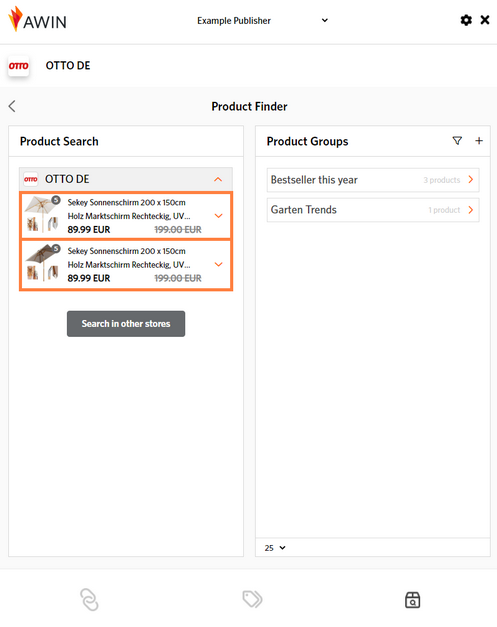
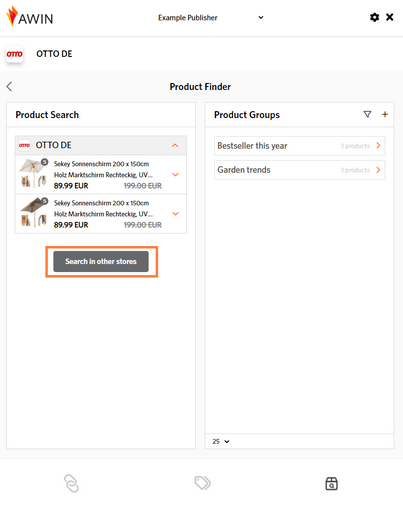
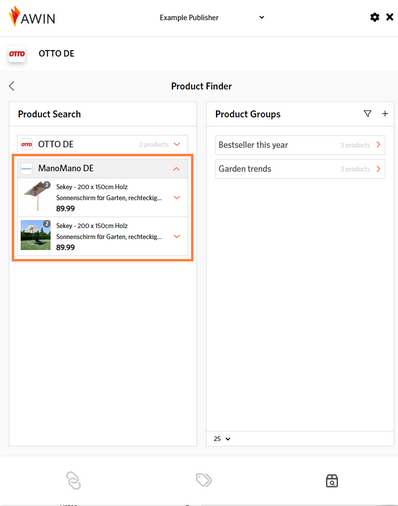
- Assign the product to a group or search for it in other stores to aid in your decision-making for product integration.
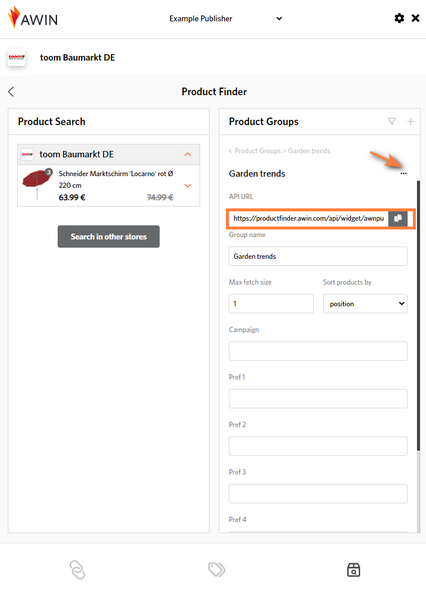
- Create a product group to obtain the API URL, manage products, and define backup products.
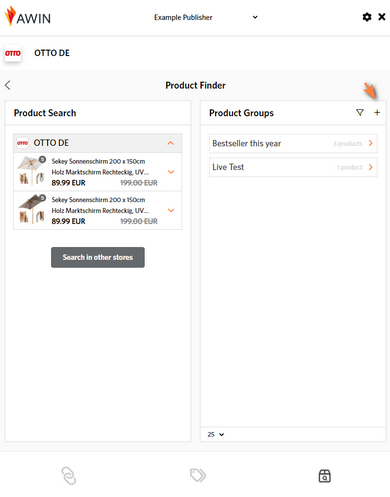
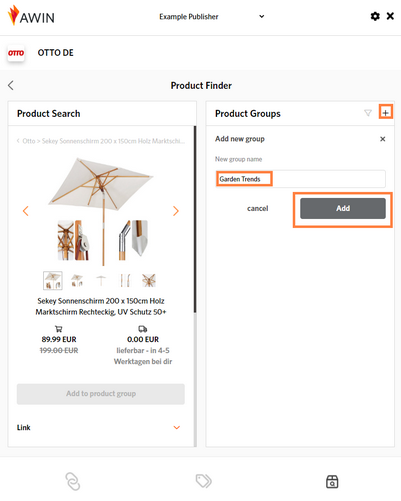
How do I create backup products within the Product Finder?
By creating individual product groups, you can categorize the same product in different versions or from different online stores and set an order in which products move up within a product group if a product is sold out.
- Open the product details to add products to a group.
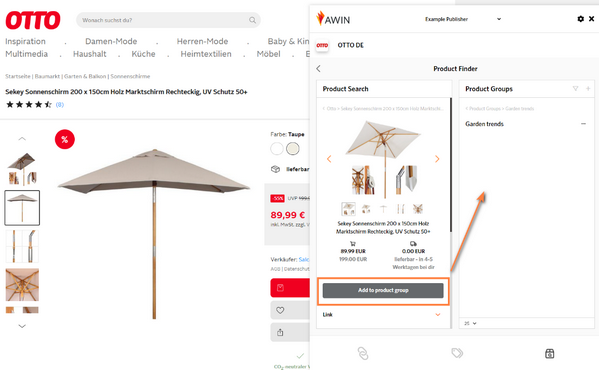
- Add as many products as you want to the group to get all the product information together.
- The products can fit thematically or be identical products from different advertisers, depending on the group.
- Sort the products according to their priority. The order then also affects the API response. If products are sold out, other products will move up in order.
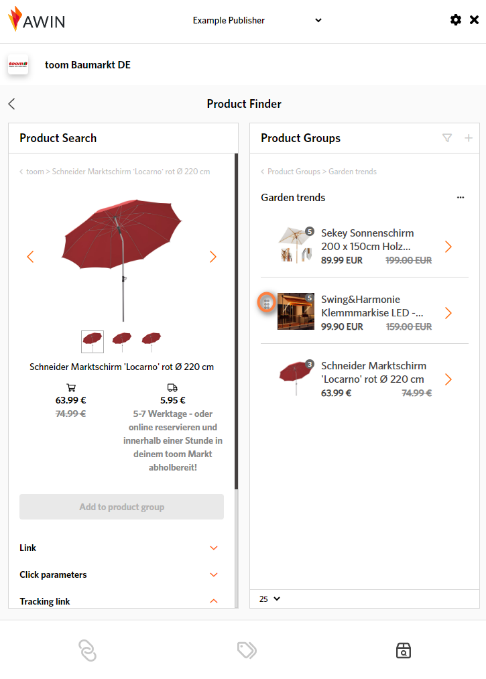
- Click on "Edit Group" to get the API URL of the product group and change additional settings (add tracking, relevant parameters, etc.).