Publishers with access to the Transaction Queries tool can use it to:
- Address untracked sales
- Contest incorrect commissions
- Dispute declined transactions
The Transaction Queries tool is suitable for publishers processing high volumes of transaction queries and who have access to customer order information. If you meet these requirements and would like to learn more about the Transaction Queries tool, contact the Partner Success Team by clicking the 'Contact Support' button at the end of this article.
How to use the Transaction Queries tool
Query Types:
- Reporting untracked transactions: For untracked sales, choose the "Untracked" query type.
- Addressing incorrect commission: For commission discrepancies, choose "Incorrect".
- Disputing declined transactions: For valid transactions incorrectly declined, select "Declined".
Upload types:
There are three ways to upload a transaction query:
- Manual Upload - Single: Upload one query at a time.
- Manual Upload - Batch: Upload multiple queries in a CSV.
- Scheduled Upload (FTP): Use FTP to automate uploads of transaction queries on your schedule.
Uploading queries:
To upload a transaction query, follow these steps:
- Log in to the Awin platform
- Using the main menu, go to Support > Queries > Transaction Queries
- Select your upload type:
- Single: For a single query, click Manual Upload and select "Single" as the upload method.
- Batch: For multiple queries, click Manual Upload and select "Batch".
- Scheduled: To schedule automatic uploads via FTP, contact the Partner Success team by clicking the 'Contact Support' button at the end of this article if you need a personal Awin FTP account.
How to schedule uploads
- Log in to your personal Awin FTP account. The server address is
ftp.awin.com, port 21. - Select daily or weekly processing (every Sunday).
- Set the file type and format, then enter your username and password.
- Connect to your FTP account and create a folder named transaction_queries in the uploads directory (
/uploads/transaction_queries/). - Upload your CSV or XML file, naming it data.csv or data.xml as shown below.
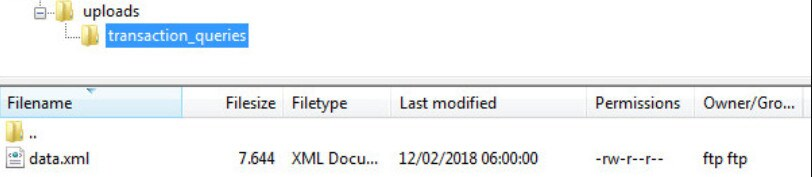
Note: To receive query notifications, add email addresses under 'Email Notifications.' Multiple addresses are supported.
Data file specifications
| Field Name | Type | Description | Mandatory/Optional | Example |
|---|
| enquiry_id | Integer (Max: 10 chars) | Unique ID of the query in Awin | Mandatory | 123456371 |
| type | Text | Can be "declined", "incorrect", or "untracked" | Mandatory | untracked |
| click_ref | Alphanumeric (Max: 50 chars) | Publisher reference for the conversion | Mandatory | clickref12345 |
| merchant_id | Integer (Max: 6 chars) | Identifies the merchant/advertiser in Awin system | Mandatory | 1234 |
| date | Date time (format varies by region) | Date/time of the order | Mandatory | 01-12-2020 12:11:26 |
| amount | Decimal (7,2) | Sale value without currency symbol | Mandatory | 5.00 |
| commission | Decimal (7,2) | Commission value without currency symbol | Mandatory | 1.00 |
| reference | Text (Max: 50 chars) | Order reference, or data to uniquely identify transaction | Mandatory | ABC123456789 |
| customer_reference | Text (Max: 20 chars) | Data to help the merchant identify the customer | Optional | customerRef-ABC_123 |
| description | Text (Max: 215 chars) | Additional info regarding the transaction | Optional | Commission received was 0.80GBP when it should have been 1.00GBP |
| currency | Currency Code (ISO 4217) | Currency of the transaction | Optional | EUR |
| timezone | Text | Timezone of the transaction | Optional | Europe/Dublin |
CSV format
- Values must be enclosed in double quotes and separated by commas.
- Rows must be separated by new lines.
- The first line should contain field headings.
CSV example:
enquiry_id,merchant_id,type,click_ref,amount,commission,date,customer_reference,reference,description,currency,timezone
123456371,3727,untracked,clickref12345,5.00,1.00,2021-01-12 23:11:00,customerrefSD2343,orderref123447,sale untracked,EUR,Europe/Dublin
XML format
All XML files need to be correctly formatted. For more information, see XML format.
XML example:
<enquiries>
    <enquiry>
        <enquiry_id>101</enquiry_id>
        <type>declined</type>
        <click_ref>25</click_ref>
        <merchant_id>1001</merchant_id>
        <date>2008-03-20 23:40:09</date>
        <amount>4.50</amount>
        <commission>1.00</commission>
        <reference>7723123</reference>
        <customer_reference>UserID</customer_reference>
        <description>this purchase was declined, why?</description>
        <currency>EUR</currency>
        <timezone>Europe/Dublin</timezone>
    </enquiry>
</enquiries>
Transaction Query Report
The Transaction Query Report details the status of each uploaded query. Use the filter tool to search for specific details, or download the report as a CSV or Excel file.
Approval process
Ensure all required information is included for each transaction to increase the chance of advertiser approval. Advertisers have 75 days to review and amend transaction queries. New queries appear in reports only when approved.
Note: The transaction query window expires after 4 years.
For more information, see How can I report a missing sale?