Payoneer is Awin’s payment partner for cross-border transactions and payments to Canada and Australia. For more details, see International Payment Method – FAQs
This guide walks you through setting up your Payoneer account through Awin to ensure a smooth process for receiving international payments.
Note: Setting up a Payoneer via Awin does not create a full Payoneer account. This setup only saves your payment details so Awin can transfer payments directly to your bank account. Your Awin payments will not be stored in Payoneer.
It’s not possible to link an existing Payoneer account that was created outside of Awin. You must register for Payoneer directly through your Awin account even if you already use their services.
For information on receiving payments through Payoneer, see Payments through Payoneer – FAQs
Step 1: Set up Payoneer from your Awin account
- Log in to your Awin account.
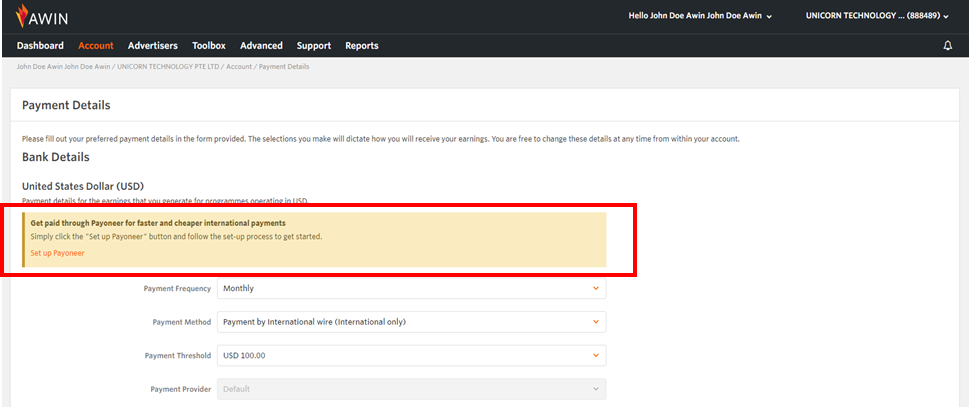
- Go to Account > Payment Details and scroll down to Bank Details.
- Select your Payment Frequency and Payment Threshold.
- Choose your Destination Country and Destination Currency.
- If your selected country and currency differ from Awin’s default currency, Payoneer will appear automatically as the Payment Provider.
- Click Update to save your changes.
- When prompted, click ‘Set up Payoneer’ in the orange banner. You’ll be redirected to the Payoneer Sign-Up Form.
Step 2: Complete the Payoneer registration form
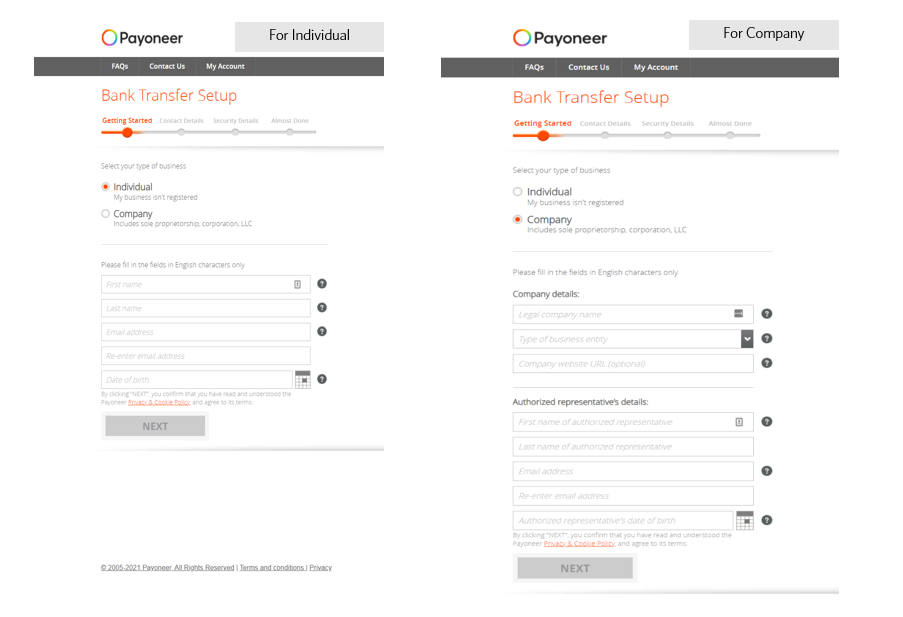
1. Enter your contact details
- Select your business type: Individual (for freelancers, bloggers, etc.) or Company (for registered businesses).
- Enter your name and contact information as shown on your government-issued ID.
- You must be 18 years or older to register.
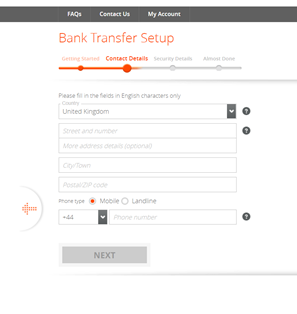
2. Enter your address
- Provide your personal or business address based on your selection above.
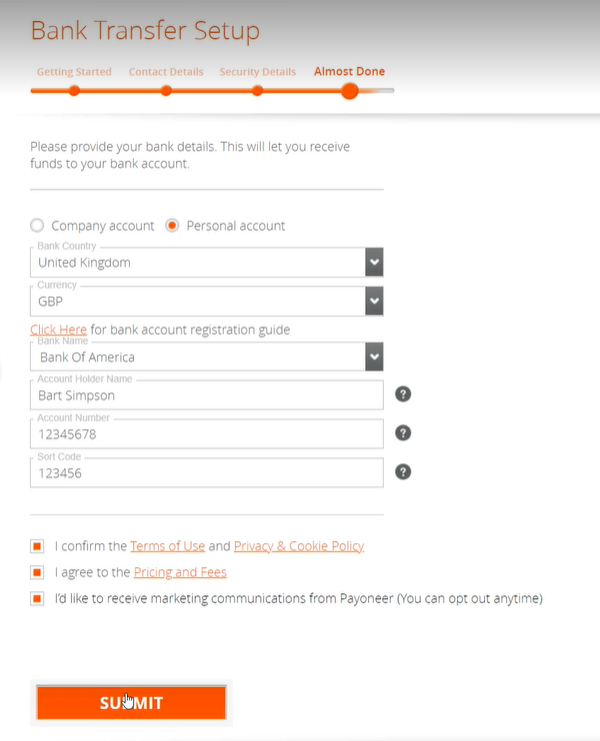
3. Enter your payment method
- Enter the bank account details where you want to receive your Awin payments.
- Select your preferred currency.
- Review and agree to the terms, then click ‘Submit’.
Once submitted, your Payoneer application will be sent for review.
Step 3: Wait for Payoneer approval
- Payoneer will review and validate your application. This process usually takes a few hours, but may take up to a few business days if further information is needed.
- You can check your Payoneer application status under Account > Payment Details in your Awin account.
- You’ll also receive an email confirmation from Payoneer once your account is verified (typically within 1–2 business days).
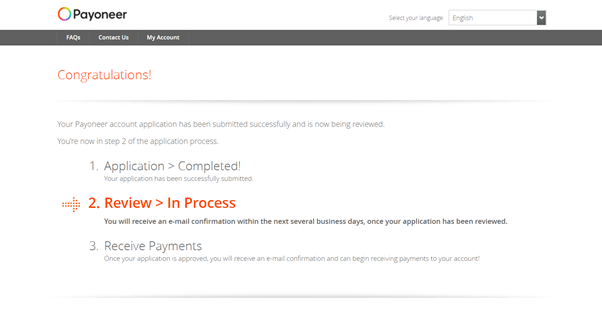
Checking your Payoneer application status in Awin
Pending: Your Payoneer application is under review.

Approved: Your account is verified and ready to receive payments.
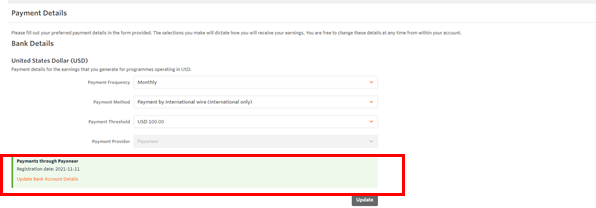
Note: If you receive payments in multiple currencies, repeat Step 2 for each currency. Your contact and security information will auto-fill. Only your bank details need to be updated.
For more information regarding Payoneer account setup, see Payoneer Account Setup – FAQs